01 / Quick start
Install the free workflow in four moves.
OrderCraft Studio adds a structured production layer to WooCommerce. The product remains the place where customers order; the Job becomes the place where your team reviews files, sends proofs and moves work into production.
- 01Check the requirements
Use a supported WordPress/PHP installation with WooCommerce active. Customers need an account when proof approval is enabled.
- 02Install OrderCraft Studio
Install it from WordPress.org, activate it, then open OrderCraft Studio in the WordPress admin menu.
- 03Configure one product
Open a WooCommerce product and use the OrderCraft Studio product panel to enable the workflow, artwork upload, proof approval and specification fields.
- 04Run a complete test order
Place a test order, upload artwork, open the Job, upload a proof and approve it from My Account. Confirm that the order status follows the Job milestone.
Use one simple product with one required text field and a small JPG. This verifies the customer form, private file handler, Job creation, proof approval and status synchronization without introducing extra variables.
02 / Global settings
Set the rules once for the whole store.
Open OrderCraft Studio → Settings to control file handling and data retention. Product-level switches still decide which products use the workflow.
Choose 1–100 MB. The default is 25 MB. Keep this close to what your production team really needs so uploads stay reliable.
PDF, AI, EPS, PNG, JPG/JPEG, TIF/TIFF and ZIP are available. SVG is not selected by default because it needs sanitization before customer use.
Leave this off to retain operational history. Enable it only when you explicitly want OrderCraft tables and settings removed during uninstall.
Artwork, proofs, Jobs, notes and activity are retained while the plugin is active. This protects historical order context during normal updates.
03 / Product setup
Turn a normal product into a custom-order product.
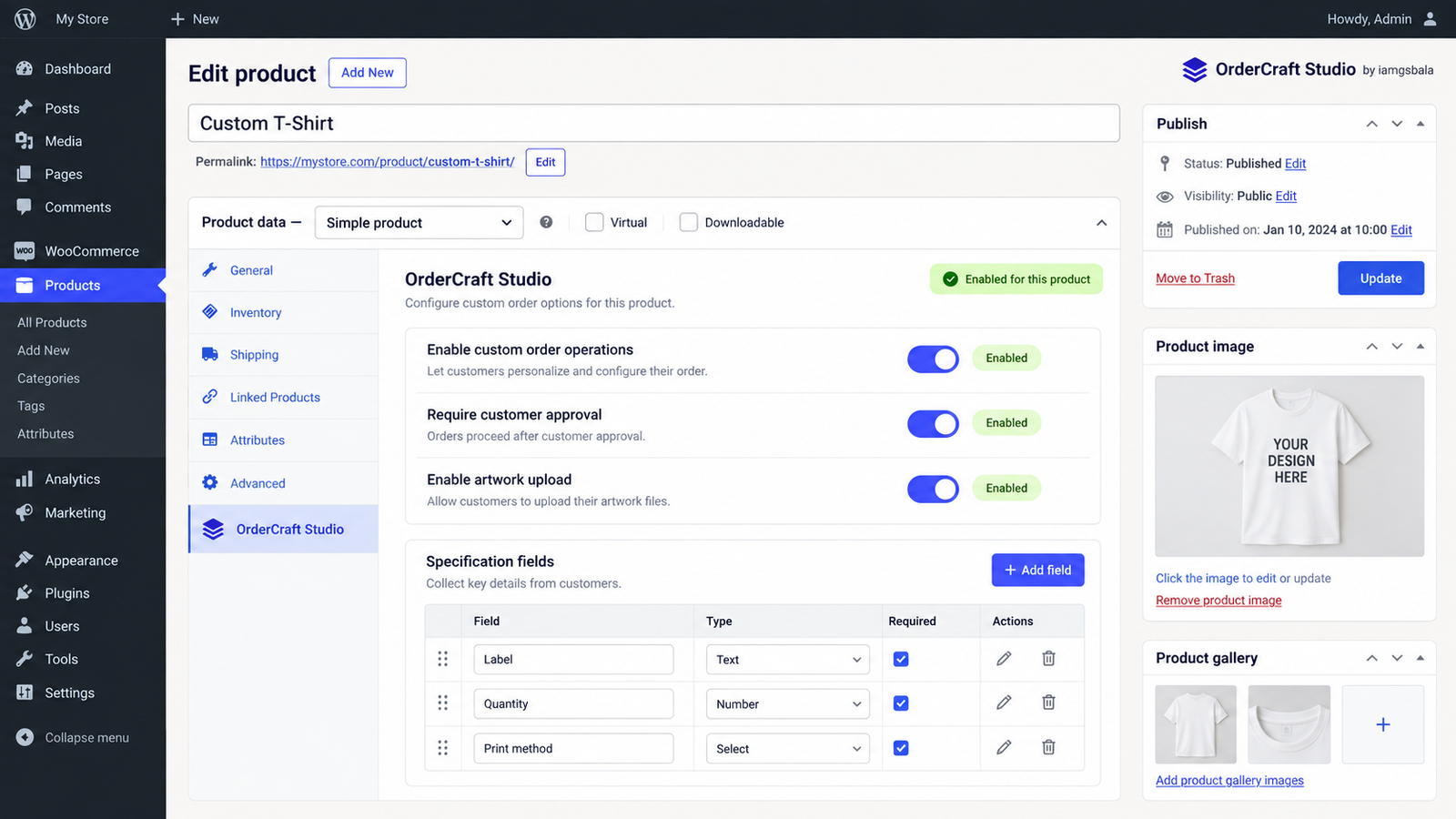
The OrderCraft Studio tab appears inside the WooCommerce product editor. Configure these options before publishing the product or accepting a live custom order.
Enable custom order operations
Creates one production Job for each eligible order item. The Job stores the product, WooCommerce order ID, specification snapshot, artwork, proofs, status and activity trail.
Require customer approval
Adds the proof-review step and requires a customer account for approval. Staff can send a current proof, the customer can approve it or request changes, and the approval is recorded against that proof version.
Enable artwork upload
Adds artwork collection to the customer order flow. File type and size are validated against Global Settings, filenames are randomized for storage, and authorized preview/download handlers protect access.
Specification fields
Build the customer brief with Text, Number, Textarea, Select, Radio and Checkbox fields. ID is stable, Label is customer-facing, Required controls validation, Description explains the request, Placeholder guides entry, Default pre-fills a value, and Options uses one value|label pair per line for Select or Radio fields.
- Stable IDs are copied into the order snapshot, so later label changes do not rewrite historical specifications.
- For options, enter values like red|Red ink and blue|Blue ink. The value is stored; the label is shown to the customer.
- Save the product after adding or changing fields. Place a test order after every major form change.
04 / Dashboard
Start every morning from one operational view.
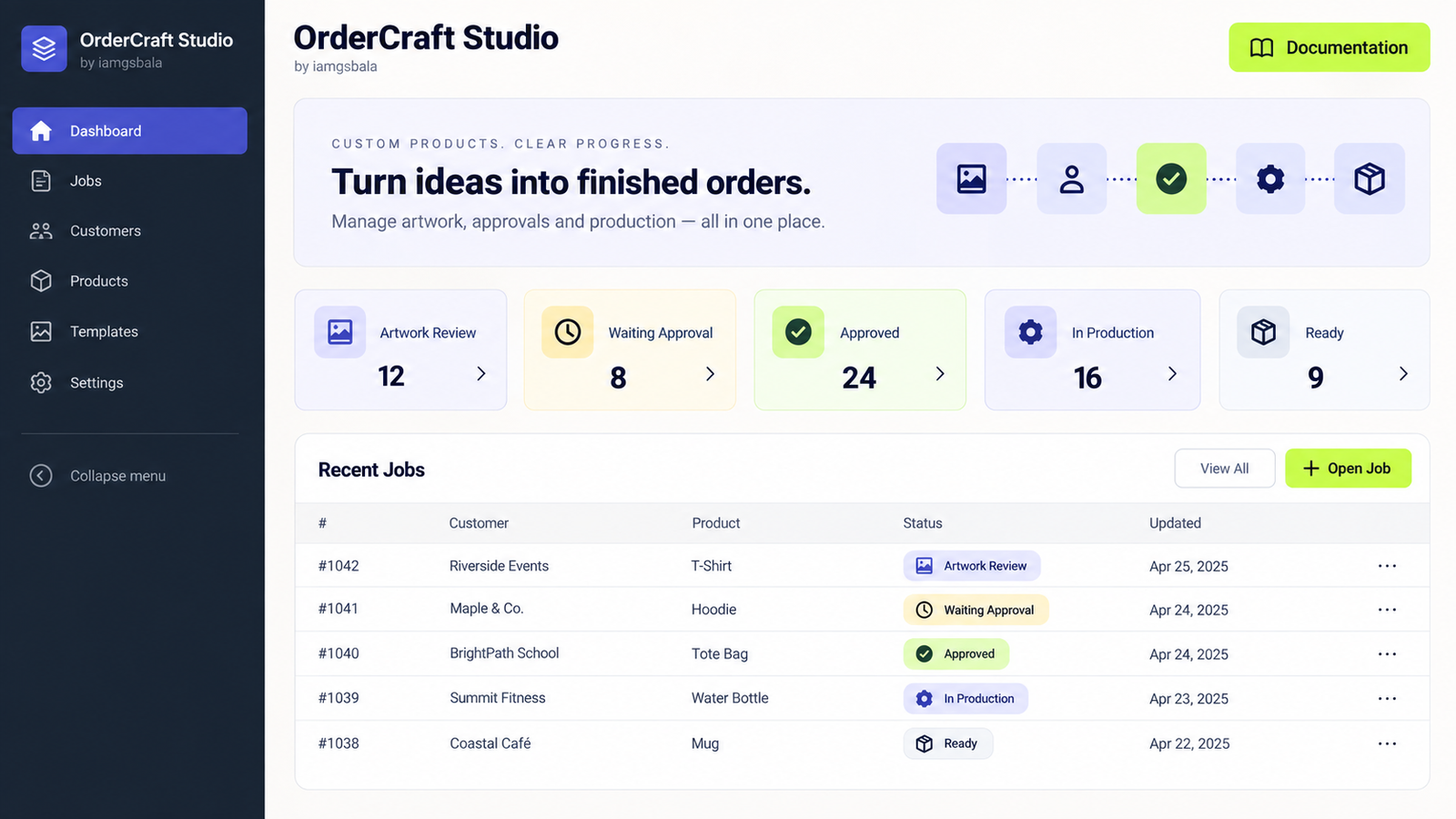
The overview shows the current workload rather than technical setup information. Status cards count Jobs, Recent Jobs gives a fast queue, and the next-step panel tells the operator what needs attention.
Use Artwork Review, Waiting Approval, Approved, In Production and Ready counts to spot bottlenecks quickly.
Open a Job from its Job number. The linked WooCommerce order ID and current status remain visible in the queue.
Use the in-dashboard documentation link for setup guidance and customer approval instructions.
The Pro card describes planned advanced automation, team operations, reporting and integrations. The free workflow works independently.
05 / Jobs and activity
A Job is the production record for one order item.
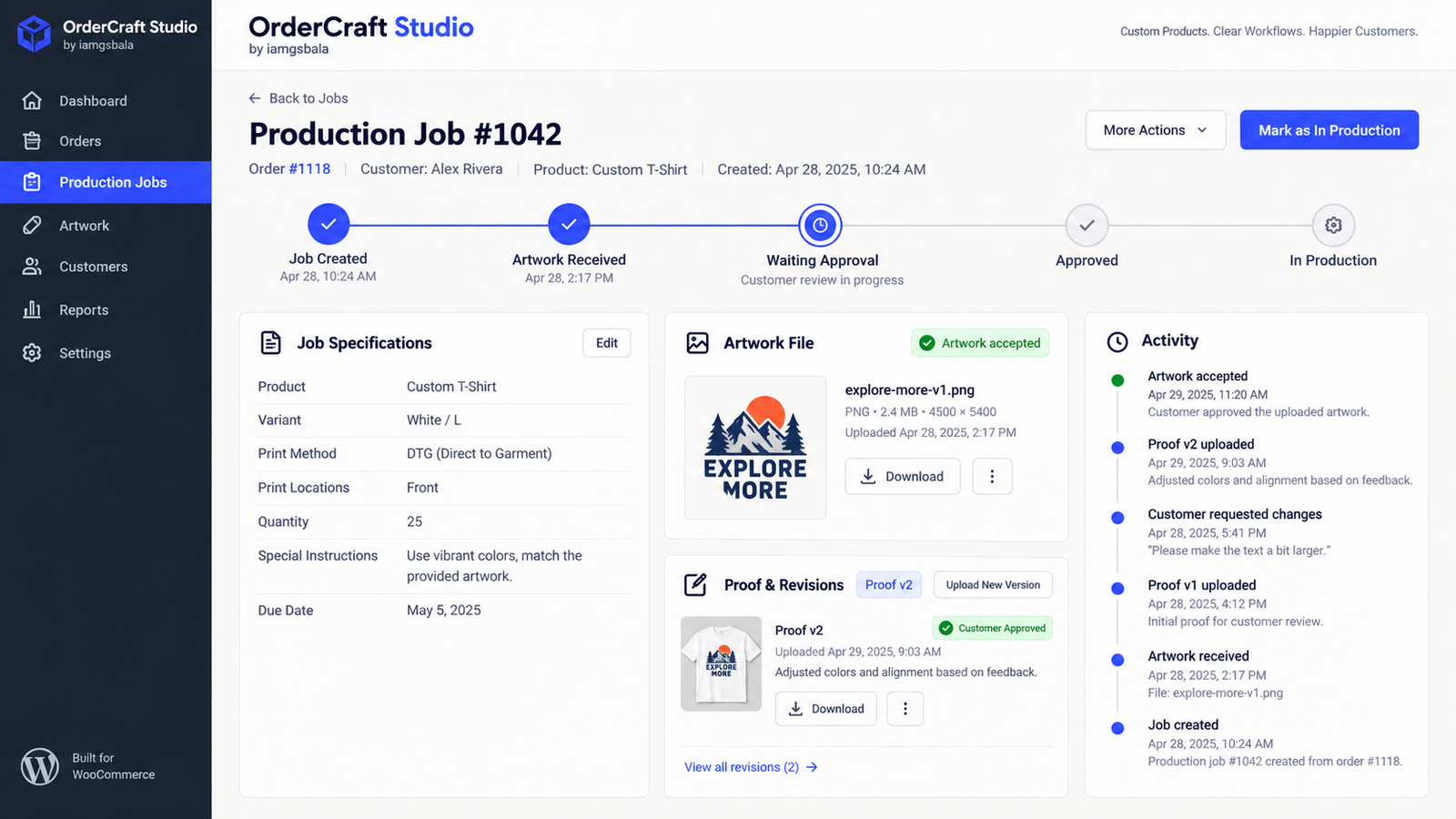
Open OrderCraft Studio → Jobs, then select a Job to see the full context. This is where the team reviews the immutable specification snapshot, artwork revisions, proof versions, status and activity.
Shows the values submitted with the order. Historical values remain stable even if the product field label later changes.
Review the current file, see previous versions, preview supported images and download authorized files.
Upload a new revision, add a customer message and make the current proof available in My Account.
Every important status, upload, approval and change request is recorded with the actor and timestamp.
06 / Customer review
Approval happens in My Account, with the order ID visible.
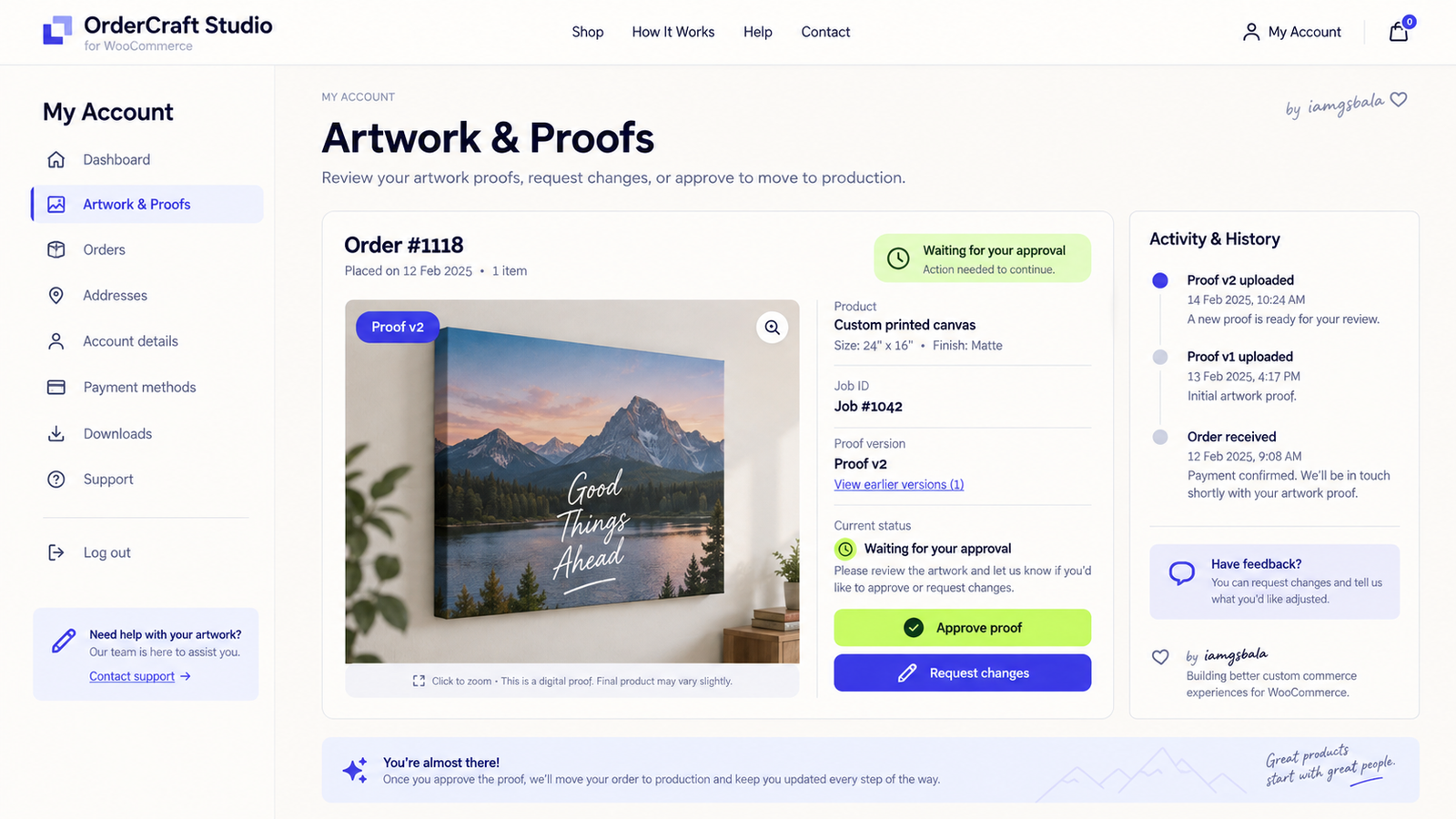
Customers use My Account → Artwork & Proofs to review the current proof, identify the linked WooCommerce order and tell the team whether to continue or revise.
Approve proof
Approval records the customer, timestamp and proof revision. The Job becomes Approved and the matching WooCommerce order status becomes OrderCraft Studio: Approved.
Request changes
The customer message is saved as a change request. Staff can prepare and upload a new proof revision, then send it back for review.
Order and Job IDs
The customer sees the WooCommerce order ID, the OrderCraft Job ID and the product context so the approval is unambiguous.
07 / Workflow states
What happens after customer approval?
Approval does not silently start production. It changes the Job to Approved and updates the order. Staff then deliberately move the Job to In Production when payment, scheduling and the production hand-off are ready.
If an order has multiple active Jobs, the order follows the least advanced active Job. Cancelled, refunded and failed orders are not overwritten by synchronization.
08 / Files and security
Designed for sensitive production files.
Artwork and proofs are stored outside the public uploads directory when the server permits it. Access is served through authenticated, capability-checked handlers. SVG is disabled by default.
- Use HTTPS on the live store and keep WordPress, WooCommerce and OrderCraft Studio updated.
- Give production staff the minimum WordPress capabilities they need. Job and settings screens require the appropriate admin permissions.
- Test preview and download links while logged out. A protected link should not expose a private file to an anonymous visitor.
09 / FAQ and support
Common questions.
Does customer approval start production automatically?
No. Customer approval changes the Job to Approved and the order to OrderCraft Studio: Approved. Staff then move the Job to In Production when the team is ready.
Why can a customer not see the Artwork & Proofs page?
Check that the customer is logged into the account used for the order, that a proof has been sent for review and that the product has customer approval enabled.
Can I change a field label later?
Yes. New orders use the new label; existing Jobs retain their stable field ID and submitted snapshot so historical specifications remain understandable.
What is included in Pro?
Pro is planned for advanced automation, Kanban/team operations, reporting, integrations and expanded production controls. The free workflow remains useful on its own.
Where can I get help?
Start with this guide and the plugin readme. For product updates and support information, visit iamgsbala.com.